Explore Refersion GraphQL using Voyager
The Schema Reference lists every query, type and field, and you can download the schema itself from it. Voyager adds one thing those pages cannot: a graph view of how the types connect. Follow the steps below to load your schema into it.
-
Prepare a POST request:
curl -X "POST" \"https://graphql.refersion.com/" \-H 'X-Refersion-Key: <YOUR_ACCESS_TOKEN>' \-H 'Content-Type: application/graphql' \noteNotice the Content-Type, which is
application/graphqlinstead ofapplication/json. -
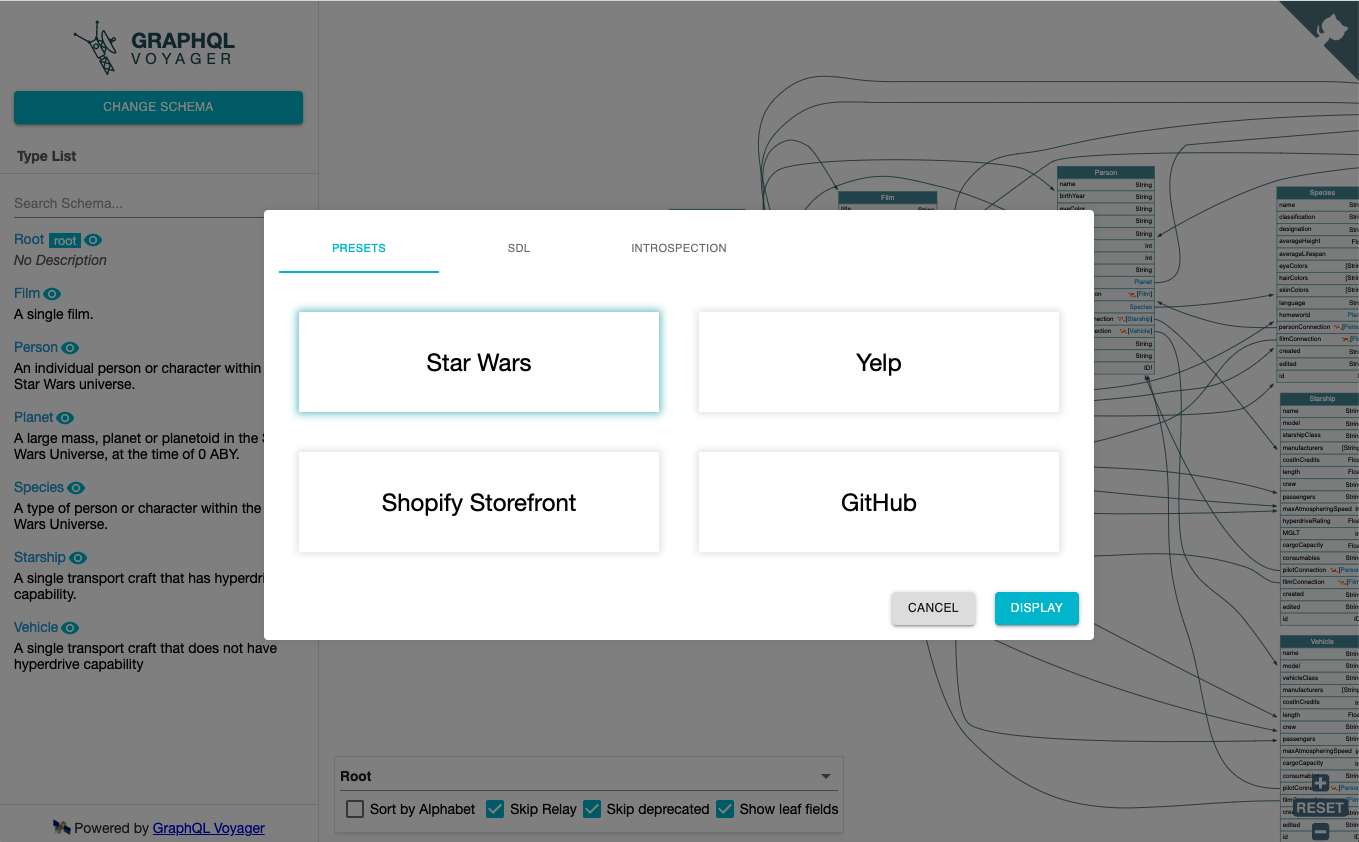
Go to https://apis.guru/graphql-voyager/. On the left, click "Change Schema". This should open up a modal in the middle of the screen just like the image below:
-
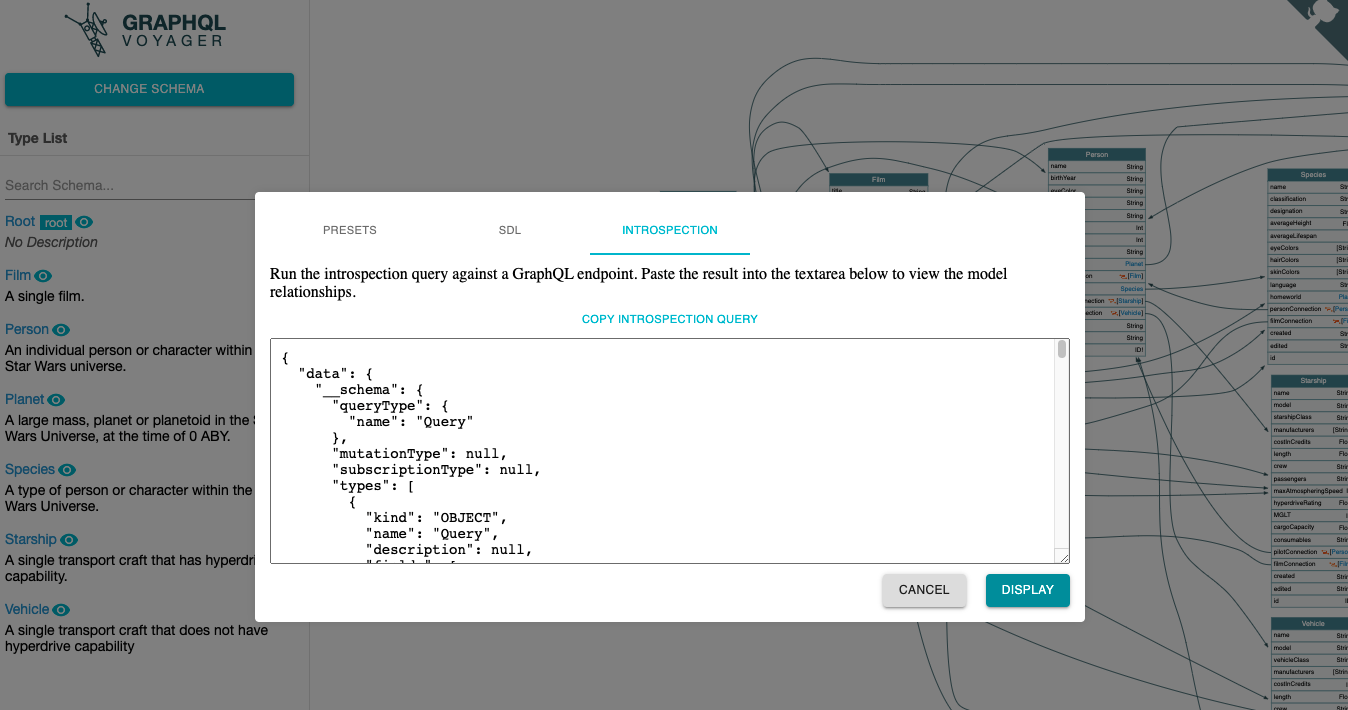
Change to the "Introspection" tab and click "Copy Introspection Query". Once copied, paste the introspection query from your clipboard as the body of the POST request you prepared. Be sure to keep your Voyager window open as you proceed to the next steps.
-
Next, send your POST request, copy the response and paste it back in Voyager (see below):
-
Finally, press "DISPLAY" and a visual graph should appear outlining all of the tables and fields that are available to query in your future requests.
Introspecting with your own token shows exactly the schema your account gets, which is the quickest way to confirm whether a field marked "Merchant tokens only" or "Marketplace tokens only" is available to you.
Related
- Schema Reference — the same schema as browsable pages, plus the behavior Voyager cannot show.
- Getting Started — how to obtain the access token used above.
- Pagination — fetch result sets larger than one page.